Power Up cmd.exe with Clink
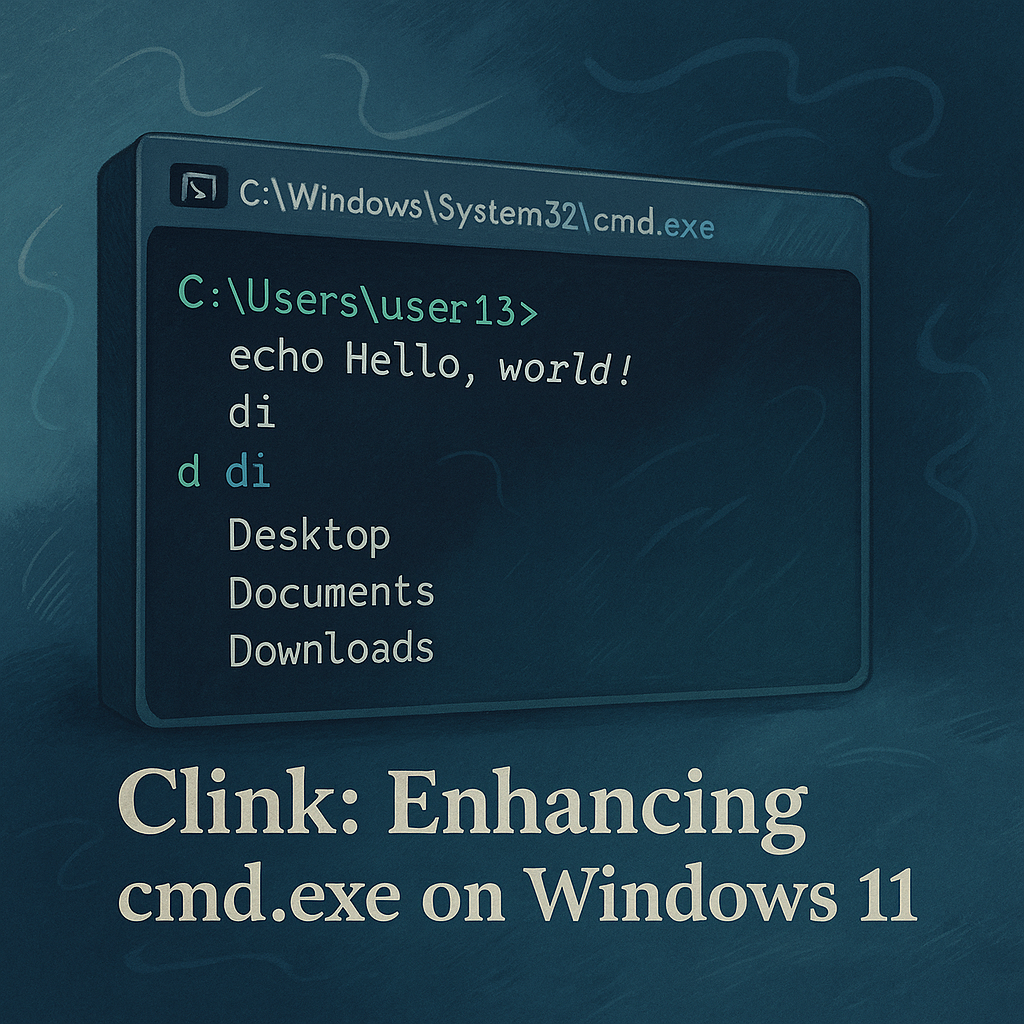
If you're setting up a fresh Windows 11 environment, one of the first tools I recommend installing is Clink. It seamlessly integrates with cmd.exe, enhancing it with features reminiscent of a Unix-like shell.
Why Clink?
Clink injects into cmd.exe, augmenting it with capabilities from the GNU Readline library. This transformation brings several enhancements:
- Persistent Command History: Navigate through previous commands using
Up/Downarrows, with history retained across sessions. - Auto-Suggestions: As you type, Clink offers suggestions based on your history and available completions.
- Advanced Tab Completion: Press
TaborCtrl+Spacefor context-aware completions of commands, file paths, and environment variables. - Customizable Prompt: Utilize Lua scripts to tailor your command prompt to your preferences.
- Enhanced Line Editing: Features like undo (
Ctrl+Z), text selection (Shift+Arrows), and more.
Installation
Clink can be installed via:
- Winget:
winget install clink - Scoop:
scoop install clink - Direct Download: https://chrisant996.github.io/clink/
During installation, you can opt to have Clink automatically integrate with cmd.exe on startup. If you choose not to, you can manually inject it later using clink inject.
For more details and customization options, visit the Clink Documentation.
By incorporating Clink, you transform the default Windows command prompt into a more powerful and user-friendly interface, bringing it closer to the functionality of a Unix-like shell.